
No Sound on Your Laptop? Here’s How to Diagnose and Fix It

You’re watching a YouTube video, taking a Zoom call, or trying to play a song. Nothing. It’s dead silent. The computer is on. Your browser is running. But there’s no sound at all. Before you call a repair shop or go into settings you don’t even know exist, relax. Most of the time, it’s a software problem that you can fix in 10 to 20 minutes.
It covers the underlying causes of why your laptop audio has stopped working and what steps you should take.
Why Laptops Lose Audio (and Why It’s Rarely a Hardware Problem)
Most laptop audio problems are caused by software. Maybe you have the wrong setting selected. Maybe you have a driver that is corrupted or a program that conflicts with it. Maybe an update to Windows or your audio software changed your settings. Speaker damage is possible, but much less likely than you’d think.


Especially Windows, which has a very complex multi-layered audio system, including system volume, application volume, audio enhancement, drivers, and any one of those can break or be changed without your doing it. macOS is generally a lot more stable, though it has its own issues with Bluetooth handoff and routing.
The reason this is important is that it changes your diagnostic approach. Instead of looking for a broken part, you’re looking for the weak link in the chain. If testing eventually points to a physical component, https://zeto.ua/ua.html are useful places to compare replacement parts by exact laptop model, part number, connector type, and compatibility rather than assuming that a visually similar speaker or cable will fit.
Step One: Run Through the Obvious Stuff First
It may sound simple but a lot of people overlook this and end up spending 45 minutes in Device Manager only to find out that they had just forgotten to unmute their browser tab.
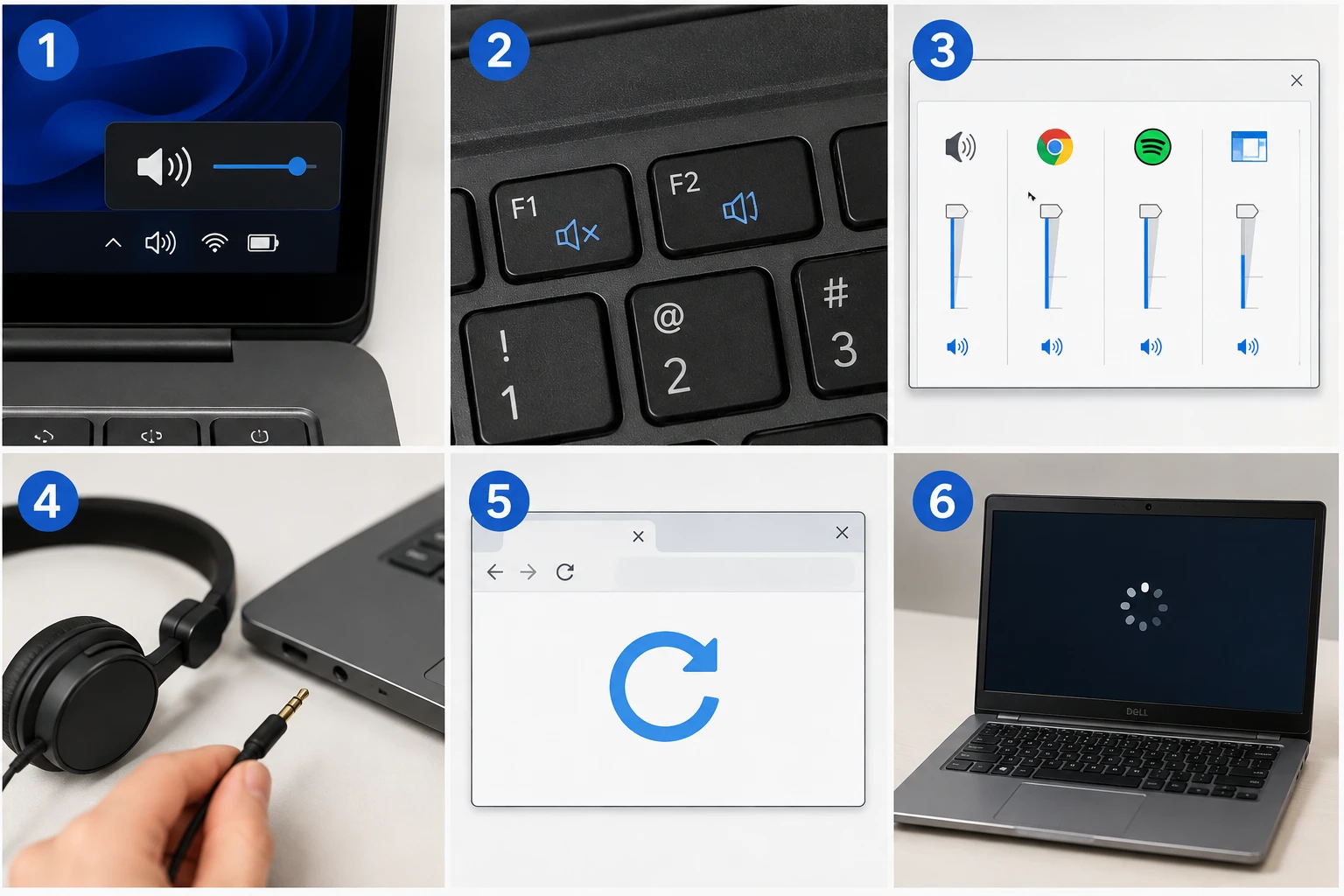
Before we do anything else, go through this list:
- Check the system volume in the bottom right (Windows) or top menu bar (Mac) — make sure it’s not muted or set to zero
- Look for a mute key on your keyboard (often F1, F2, or a speaker icon) and press it once — laptops sometimes mute accidentally
- Right-click the speaker icon in Windows and open “Volume Mixer” — check if the specific app you’re using has its own volume set to zero
- Unplug any headphones or external speakers and test without them — the output device might have switched automatically
- Restart the browser or app you’re using; some applications hold the audio output and don’t release it properly
- Restart the laptop entirely — audio drivers sometimes get stuck after sleep or hibernate
If none of these solutions work, then you have a deeper problem. Continue to the next section.
Windows-Specific Fixes
Select the correct playback device. Click the speaker icon in the taskbar with the right mouse button → Sounds → Playback tab. You will see a list of devices for outputting sound, including laptop speakers, HDMI ports, Bluetooth speakers, etc. Make sure the default device is set to your laptop speakers. If you connected a monitor or TV via HDMI, or paired a Bluetooth speaker, Windows may have changed the default output to that device. Even if you disconnect the device, the output device may remain changed.
Step 5: Update/reinstall audio drivers Type ‘Device Manager’ in the Start menu search box, then click on it. Next, expand ‘Sound, video and game controllers.’ Right-click the device and select ‘Update driver.’ If that fails, you can try ‘Uninstall device.’ Reboot the laptop and Windows will install the driver again. This fixes a surprising number of issues, especially following major Windows updates.
No audio enhancements. I’ve seen this trip up a number of people. Head to Sound settings, then Playback, then right click on your speakers, then Properties. From there head over to the Enhancements tab. Check the box for “Disable all enhancements” and give it a shot. Some enhancements (especially spatial/Dolby) will mute your audio on some devices.
Run the Windows audio troubleshooter. It’s not foolproof, but it’ll find most of the common problems without any effort. Right-click the speaker icon → Troubleshoot sound problems. Follow the prompts. Occasionally, it will restart a hung audio service or find a driver conflict you didn’t realize existed.
If the service was stopped, you can start it again by pressing Win + R to open the Run dialog box, typing services.msc and clicking OK. When the Services window opens, scroll down to the Windows Audio service, then right-click on it and choose Restart from the context menu.
Mac-Specific Fixes
Go to System Settings > Sound > Output and ensure that your MacBook speakers are chosen. If Internal Speakers aren’t listed at all, that’s another issue. First, restart your Mac.
Another common Mac bug: plugging and unplugging headphones can sometimes mess with macOS’ audio routing and make it think there’s a device plugged in when there isn’t one. If you suspect macOS has routed your audio somewhere it shouldn’t be, open up Audio MIDI Setup (you can search for it using Spotlight), find your output device, and make sure the format and channel options don’t have any weird stuff selected.
If you’re having persistent issues, try resetting the NVRAM. Shut down the Mac and turn it back on while holding down the Option+Command+P+R keys for about 20 seconds. Resetting the NVRAM will also reset hardware-related settings, including a few related to audio, and fixes problems that otherwise don’t respond to software changes.
When It’s Time to Dig Deeper
Here are the signs that the issue might be hardware-related and worth a professional look:
- Sound was working fine, then the laptop physically fell or got bumped
- You hear crackling or distorted audio rather than complete silence — this can indicate a damaged speaker cone or a loose connection
- The audio troubleshooter finds no issues and drivers are up to date, but nothing plays
- One side of the stereo works but not the other (left/right imbalance with no software explanation)
- Audio only works through headphones but not the built-in speakers — or the reverse, which suggests a physical jack or switch issue
The appropriate next step in those instances is a hardware diagnostic. This is another reason to have a competent tech person on hand. For example, iFixit has teardown guides and hardware diagnostics for most laptops. If you’re able to open a laptop up yourself, or want to know what a repair shop is going to be looking at, iFixit is a great place to start.